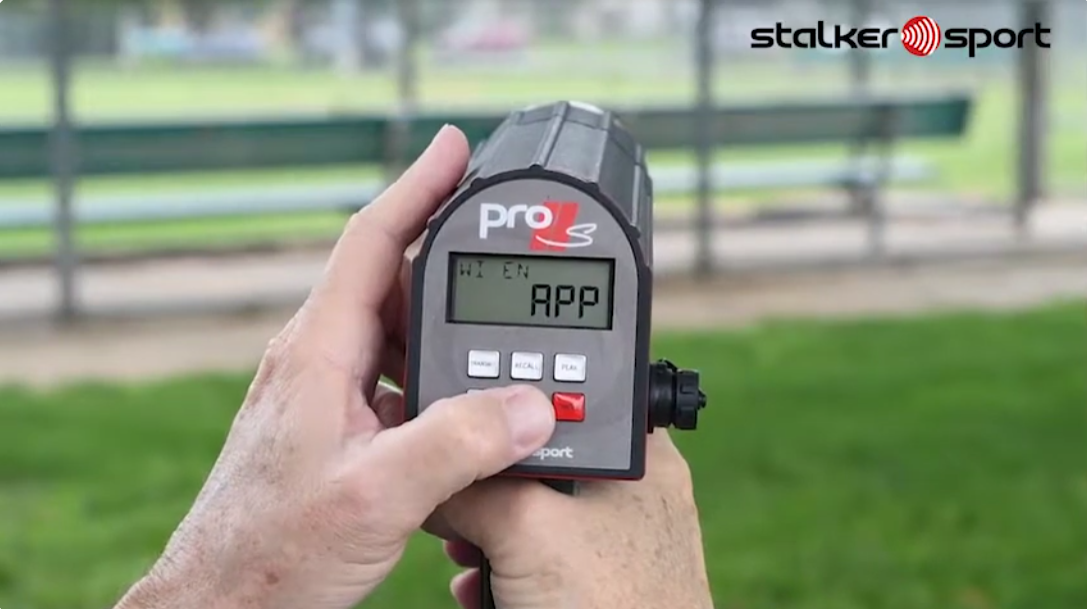
How do I fix the wireless connection between the app and my Pro IIs or Pro II+ if my iPhone or iPad becomes disconnected?
Solution 1: Turn Off Bluetooth on Your Second iPhone or iPad
- If you’ve previously connected the radar gun to another device, that connection may still be active. Turn Bluetooth off on the second iPhone or iPad to free up the connection.
- If needed, restart both your Pro IIs or Pro II+ and your app on the primary iPhone/iPad to refresh the connection settings.
Solution 2: Eliminate Secondary Wireless Pairings
- On your second iPhone or iPad, open the Bluetooth menu.
- Find your radar gun (e.g., Stalker Pro IIs 1234), tap the blue “i” icon, and select Forget This Device.
Solution 3: Reset Your Pro IIs or Pro II+ Gun PIN Number
- Power on the radar gun.
- When “BALL” appears, press MENU
- When “RANGE” appears, press and hold MENU for 2 seconds.
- When “LOW” appears, tap MENU until you see “WIPWD.”
- Press SELECT or RECALL to change the 4-digit PIN. (Be sure to note your new PIN.)
- Squeeze the trigger to save changes.
Solution 4: Reset Pro IIs or Pro II+ Gun Wireless Mode
- Power on the radar gun.
- When “BALL” appears, press MENU
- When “RANGE” appears, press and hold MENU for 2 seconds.
- When “LOW” appears, tap MENU until you see “RESET.”
- Press SELECT or RECALL to change the bottom right option to “YES.”
- Press the MENU once more until you see “SURE.”
- Press SELECT or RECALL to change the bottom right option to “YES.”
- Squeeze the trigger to save changes.
- The radar will reset all setting to default.
- Once it restarts, pair the radar with your iPhone or iPad via the Stalker Sport App.