

Load video: Radar Gun Setup Tutorial for using the Stalker Pro 3s, Pro 3, and Sport 3 Connect and  with the Stalker Sport App.Load video: Radar Gun Setup Tutorial for using the Stalker Pro 3s, Pro 3, and Sport 3 Connect and  with the Stalker Sport App.

Stalker Sport App

Setting Up Your Stalker Pro Series Gun To Pair With The App Is Fast And Easy

Watch the Radar Gun Setup Tutorial video for using the Stalker Pro3s and Pro 3 with the Stalker Sport App or follow the detailed steps below. Learn more about the app here.

Step 1

Radar Gun Settings

  • Press the red ON/OFF button
  • Briefly press the menu key and the word “Range” will display on the screen. If you have a Pro IIs or Pro II+ radar, you will need to navigate to the second-level menu by pressing the menu key again for a half second until Low displays.
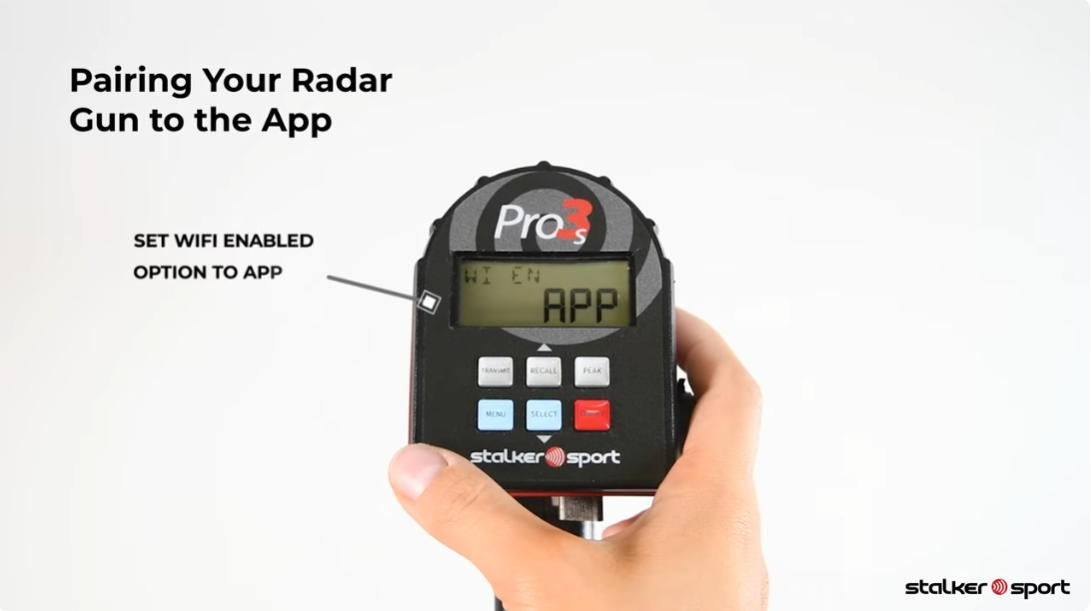
  • Press the menu key until “WI EN” is displayed.
  • Press the Select button to change the “WI EN” setting to “App”
  • Pull the trigger to save your changes.

Step 2

Pairing Your Radar Gun To The App

Download On The App Store Download On Google Play
  • Download and install the app.
  • Make sure your Radar Gun is on.
  • Launch the Stalker Sport App on your device.
  • Accept the End User License Agreement (EULA)
  • Press the Connect to Radar button
  • Press OK to connect wirelessly
  • Choose your Stalker Radar Gun in the devices listing, type in the PIN (which is the last 4 digits of the serial number unless you have modified it, located on the bottom of your radar gun near the battery handle clamp) and you’re now paired with the Stalker Sport App!

Required Settings


The following default settings in the Options Menu are required for communication with your smartphone. If these settings have been changed, modify them back to the following:

  • Serial Port Speed BAUD 96 
  • Serial Port Format FOR bE 
  • Wireless configuration WI EN APP 
  • PEAK function turned on  
 

Wireless Connectivity Steps

For Pro 3s & Pro 3

Pro 3s / Pro 3 Radar Wireless Connectivity Steps

Follow these steps to reset and reconnect your Pro 3s or Pro 3 radar to the Stalker Sport App:

  • Change the Bluetooth PIN on your radar gun.

    Power on the radar.
    Press MENU once (do not hold).
    Press MENU until you reach “PIN.”
    Use RECALL or SELECT to change the PIN by one number.
    Pull the trigger to save. A new PIN is now set.
Reconnect in the Stalker Sport App
  • Open the Stalker Sport App on your iPhone or iPad.
  • Tap the Play button to search for available devices.
  • When your radar appears in the list, select it.
  • When prompted for a Bluetooth pairing PIN, enter the new PIN you just set — not the last four digits of the radar’s serial number.

Confirm Successful Connection

  • If the radar stays connected and live speed data appears in the app, your setup is complete.
Only If Still Not Connecting
  1. If the app still doesn’t prompt for a new pairing PIN, return to Step 1 and repeat the process.
  2. If the issue continues, back up any data you want to keep from the Stalker Sport App.
  3. On your iPhone or iPad, go to Settings → General → iPhone Storage → StalkerSport.
  4. Tap Delete App to clear the cache and remove stored data.
  5. Restart your iPhone or iPad.
  6. Reinstall the Stalker Sport App from the App Store.
  7. Try reconnecting your radar to the app again.
Pro 3s / Pro 3 Radar: Reset and Confirmation

Follow these steps to reset your radar to factory default settings:

  1. Power on the radar gun.
  2. Press MENU once to enter the Operator Menu. You’ll see “RANGE” as the first option.
  3. Press and hold MENU you will see “LOW.” in the top left corner.
  4. Press MENU until you reach “RESET.”
  5. Use RECALL and SELECT to change the bottom right option to “YES,” then press MENU again.
  6. You’ll see “SURE.” Use RECALL and SELECT again to change the bottom right option to “YES.”
  7. Pull the trigger to save your settings.
  8. The radar will now reset to factory defaults.

For Pro IIs & Pro II+

Pro IIs/Pro II+ Radar Wireless Connectivity Steps

Follow these steps to reset and reconnect your Pro IIs or Pro II+ radar to the Stalker Sport App:

  1. Change the Bluetooth PIN on your radar gun.

    Power on the radar.
    When it’s ready to read speed, press MENU once to enter the Operator Menu.
    You’ll see “RANGE” as the first option.
    Press and hold MENU until you see “8888” in the top left and bottom right corners.
    The top left will settle on “LOW.”
    Press MENU once per second until you reach “WIPWD.”
    Use RECALL (Up) or SELECT (Down) to change the PIN by one number.
    Pull the trigger to save. A new PIN has now been set.

  2. Forget the old Bluetooth connection.

    On any iPhone or iPad previously paired with the radar, go to Settings → Bluetooth.
    Find your radar (e.g., Stalker Pro IIs 1234).
    Tap the “i” icon and select Forget This Device.

  3. Reconnect using the new PIN.

    Open the Stalker Sport App on your iPhone or iPad.
    Tap the Play button to search for available devices.
    When your radar appears in the list, select it.
    When prompted for a PIN, enter the new PIN you just created—not the last four digits of the radar’s serial number.

  4. Confirm successful connection.

    If the radar stays connected and live speed data appears in the app, setup is complete.

  5. On the Pro IIs/Pro II+ Radar: Please change the pin number on the radar then pull the trigger to confirm the new settings.
Only If Still Not Connecting
  1. If the app still doesn’t prompt for a new pairing PIN, return to Step 1 and repeat the process.
  2. If the issue continues, back up any data you want to keep from the Stalker Sport App.
  3. On your iPhone or iPad, go to Settings → General → iPhone Storage → StalkerSport.
  4. Select Delete App to clear the app cache and remove all stored data.
  5. Restart your iPhone or iPad.
  6. Reinstall the Stalker Sport App from the App Store.
  7. Reconnect your radar to the app using the new Bluetooth PIN.
If Still Not Connecting
  1. On the iPhone or iPad previously paired with the radar, go to Settings → Bluetooth and Forget This Device for your Pro IIs/Pro II+ radar.
  2. Fully close the Stalker Sport App, including removing it from your recently opened apps.
  3. Power cycle both the radar gun and your iPhone or iPad (turn them off and back on).
  4. Reopen the Stalker Sport App and attempt to reconnect your radar.
  5. If prompted for a Bluetooth pairing PIN, enter the new PIN you set earlier.
  6. If the app does not prompt for a new PIN, repeat the process from the beginning.
Pro IIs / Pro II+ Radar: Reset and Confirmation

Follow these steps to reset your radar to factory default settings:

  1. Power on the radar gun.
  2. When it’s ready to read speed, press MENU once to enter the Operator Menu.
  3. You’ll see “RANGE” as the first option.
  4. Press and hold MENU until “8888” appears in the top left and bottom right corners.
  5. The top left should then display “LOW.”
  6. Press MENU with a one-second pause between presses until you reach “RESET.”
  7. Use RECALL and SELECT to change the bottom right option to “YES.” Press MENU again.
  8. You’ll see “SURE.” Use RECALL and SELECT again to change the bottom right option to “YES.”
  9. Pull the trigger to save your settings.
  10. The radar will now reset to factory defaults.
  11. This process removes any previous Bluetooth pairing. Once reset, allow the radar to restart, then pair it with your new iPhone or iPad through the Stalker Sport App.
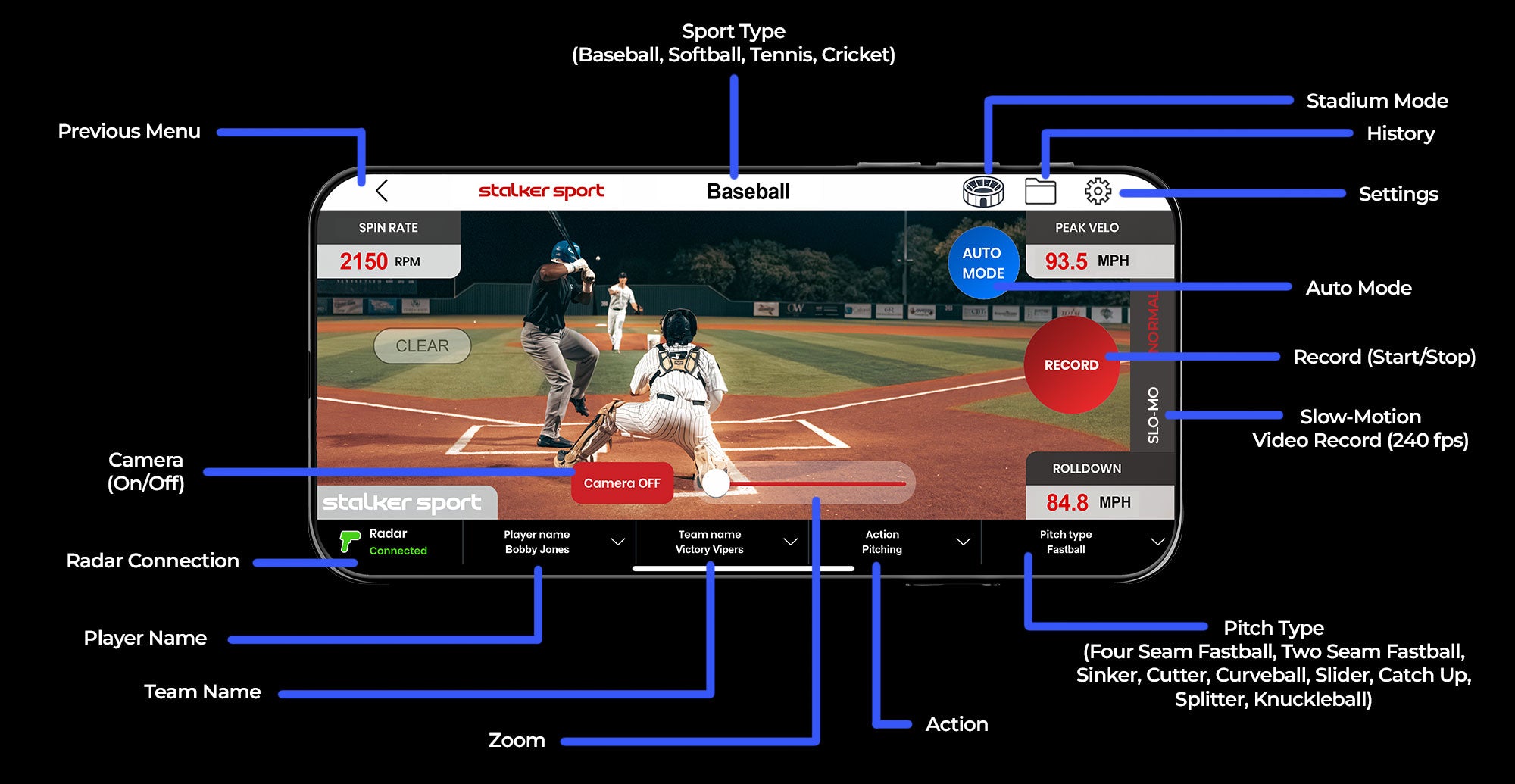
Stalker Sport App

Video Display Guide


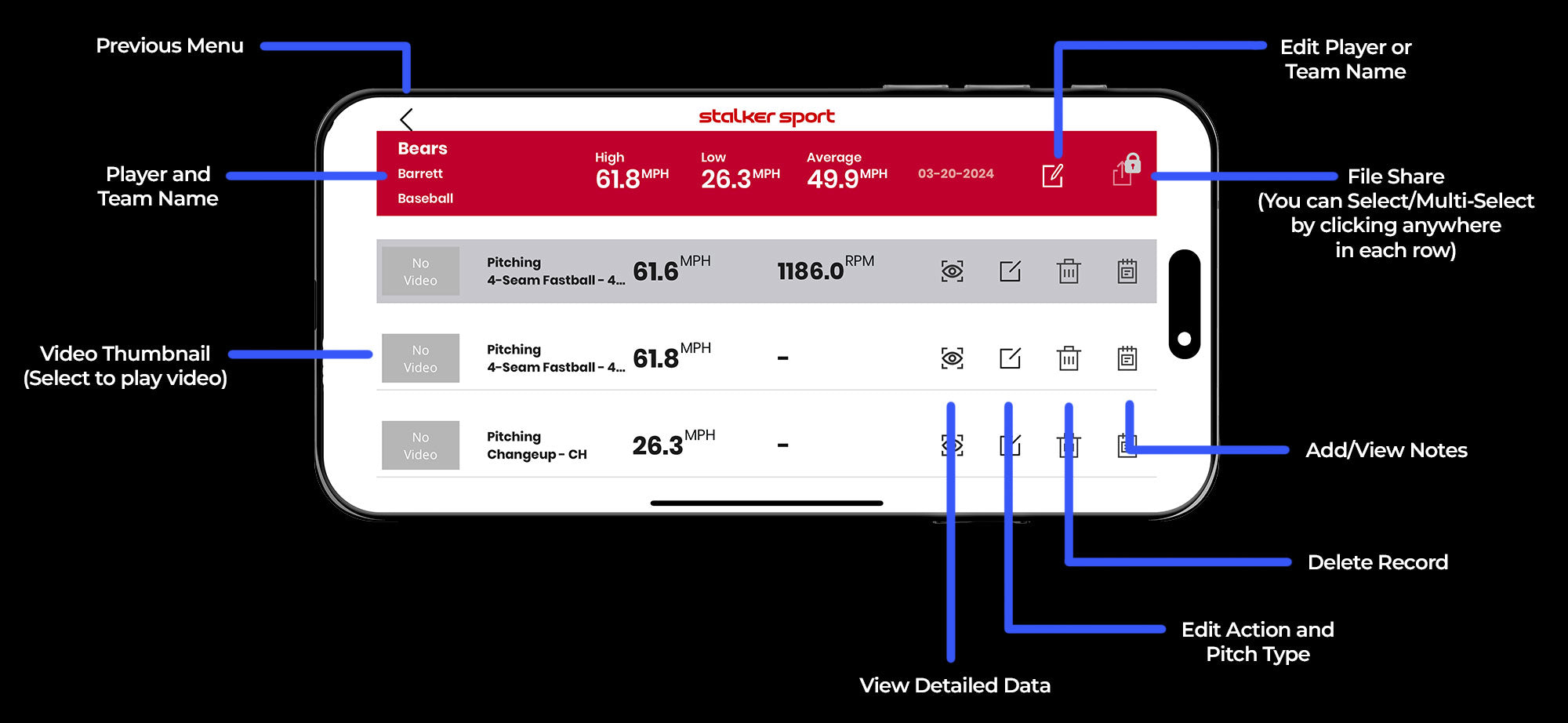
History Function Guide